



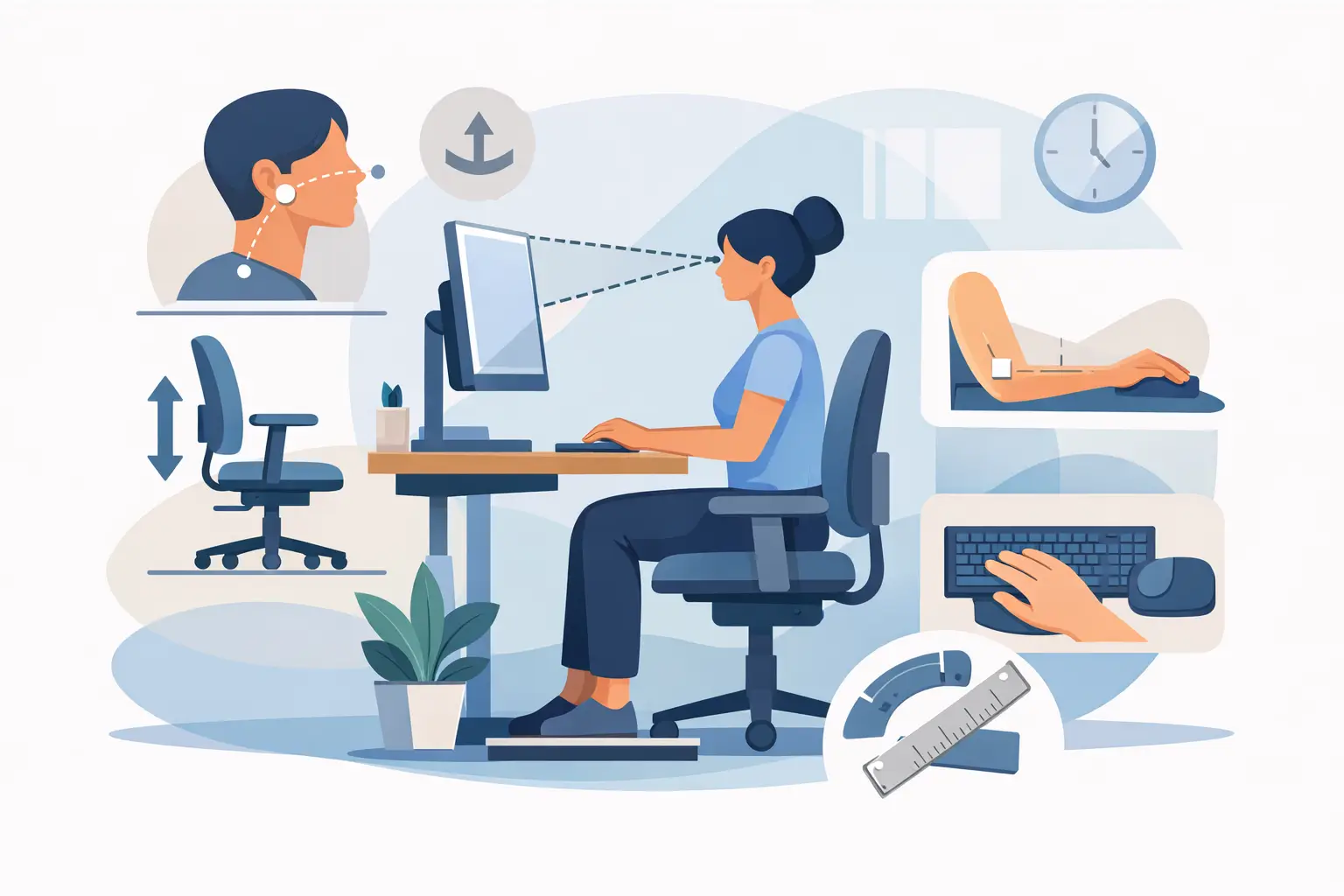
A desk can look well designed and still cause a full day of shoulder tension, wrist pressure, and poor concentration. Knowing how to measure desk ergonomics gives office managers, business owners, and home-office users a practical way to assess whether a workstation fits the person using it – rather than expecting the person to adapt to the furniture.
Ergonomic measurement is not about finding one “correct” desk height for everyone. It is about matching the chair, work surface, monitor, keyboard, and frequently used tools to the user’s body dimensions and daily tasks. A reception workstation, medical administration desk, shared corporate workstation, and executive office will often need different solutions.
How to Measure Desk Ergonomics at the User Level
Start with the individual seated in their normal working position, wearing the footwear they typically use at work. Measurements taken from a standing person or from an empty chair can be useful for planning, but they do not tell you whether the working position is actually comfortable.
The key reference point is seated elbow height. Ask the user to sit back in the chair with their feet supported, shoulders relaxed, and upper arms close to their sides. Their elbows should be bent at roughly 90 to 100 degrees. Measure from the floor to the underside of the elbow. This is the approximate height at which the keyboard or primary work surface should sit.
For many adults, a standard fixed desk around 29 to 30 inches high will be too high or too low. That does not automatically mean the desk must be replaced. A height-adjustable chair, footrest, keyboard tray, adjustable monitor arm, or custom work surface can often bring the setup into alignment. The right option depends on the available space, the number of users, the desk construction, and whether the workstation is assigned or shared.
Check the Chair Before Measuring the Desk
The chair is the foundation of the workstation. If the seat height is wrong, every measurement above it becomes less reliable.
Adjust seat height until the user’s feet rest flat on the floor and their knees are close to a 90-degree angle. A slight opening at the knee is generally comfortable, provided the user is not sliding forward or feeling pressure behind the knees. There should be a small gap between the front edge of the seat and the back of the lower leg.
Seat depth matters as much as height. A deep seat can press against the backs of shorter users’ knees, while a shallow seat may provide insufficient thigh support for taller users. Adjustable seat depth is particularly useful in shared offices and for organizations aiming to accommodate a wider range of employees without replacing furniture for every change in staff.
Set the backrest to support the natural curve of the lower back. The user should be able to sit upright without holding themselves in position. Armrests should support the forearms lightly without lifting the shoulders. If armrests hit the desk edge and force the chair too far back, lower, narrow, or remove them where adjustment allows.
Measure the Desk Height and Clearance
Once the chair is set, assess the desk. The keyboard position should be at or just below seated elbow height. The user’s shoulders should remain relaxed, wrists should stay close to neutral, and forearms should not be reaching upward to use the keyboard.
A fixed-height desk can create a common compromise. A shorter user may raise their chair to reach the keyboard, then lose proper foot support. In that case, add a stable footrest rather than leaving their feet dangling. A taller user may need the chair lower, which can make the desk feel too low for leg clearance or thigh movement. For them, a higher work surface or adjustable desk may be the better long-term answer.
Measure the clear space beneath the desk as well. The user needs room to move their legs, reposition the chair, and access a footrest if required. Drawers, modesty panels, CPU holders, cable trays, and fixed cabinetry can all reduce usable clearance. A desk may meet a nominal height measurement yet still be uncomfortable because the space under it has been filled with equipment.
For planning purposes, consider these practical targets:
- The work surface should allow the keyboard to sit at approximately seated elbow height.
- The desk should provide enough depth to position the monitor at a comfortable viewing distance without pushing the keyboard too close to the edge.
- The area below the desk should remain clear enough for normal leg movement and chair adjustment.
- Frequently used items should sit within easy reach, without repeated twisting or forward stretching.
These are not substitute dimensions for an individual assessment. They are design checks that help identify when a standard desk layout needs adjustment or custom manufacturing.
Set Monitor Height, Distance, and Alignment
Monitor placement has a direct effect on neck posture. Measure from the user’s eyes to the center of the screen while they are seated naturally. For a typical single-monitor workstation, the screen should generally sit about an arm’s length away – commonly 20 to 30 inches, depending on screen size, text size, visual requirements, and the user’s eyesight.
The top line of the display should be at or slightly below eye level for most users. This allows a small downward viewing angle rather than forcing the chin upward. With larger monitors, the top edge may sit slightly higher, but the primary viewing area should still be comfortable without neck extension.
Center the primary monitor directly in front of the user. If two monitors are used equally, place the join between them in line with the user’s nose and angle both screens inward. If one screen is clearly dominant, place it in front and position the secondary screen beside it. A monitor set off to one side may seem minor, but repeated head rotation over a full workday can create persistent neck discomfort.
Screen height should be measured after the chair and keyboard have been set. Raising a monitor to fix a viewing problem before correcting the seat or desk height often treats the symptom rather than the cause. Monitor arms are particularly effective in shared workspaces because they provide quick adjustment without adding bulky risers to the desk.
Assess Keyboard, Mouse, and Reach Zones
The keyboard and mouse should be close enough that the user can work with elbows near their body. Measure the distance from the front edge of the desk to the keyboard. If the keyboard sits too far away, users tend to lean forward, abandon backrest support, or reach through the shoulders.
Keep the mouse beside the keyboard at the same height. A mouse positioned on a higher side return, on top of a stack of paperwork, or beyond the user’s comfortable reach can place unnecessary load on the shoulder and wrist. If documents are regularly referenced while typing, place them between the keyboard and monitor or use a document holder close to the screen. Constantly looking down and to the side is inefficient and difficult on the neck.
The primary reach zone is the area a user can access with elbows bent and upper arms near the torso. Place the keyboard, mouse, telephone headset controls, frequently used files, and daily stationery in this area. Items used less often can sit farther away. This is especially relevant at reception counters, dispatch desks, medical administration stations, and workpoints where staff manage paper files alongside digital systems.
Account for Task Type and Shared Workstations
Desk ergonomics should reflect the work being performed, not just the furniture specification. A person entering data for six hours needs a different arrangement from someone moving between meetings, reviewing plans, signing documents, and using dual screens for short periods.
Sit-stand desks can help employees change posture during the day, but they are not a cure for a poorly arranged workstation. When standing, the keyboard should still be near elbow height, the monitor should remain at an appropriate viewing height, and the user should avoid locking their knees or leaning onto one hip. Alternating positions is generally more useful than trying to stand for an entire shift.
Shared desks require an adjustment process that is simple enough for employees to use. Height-adjustable chairs and monitor arms are often more practical than a fixed, highly customized setup. For hot-desking environments, provide a short workstation adjustment guide and ensure the furniture can accommodate it. A sophisticated desk that takes 15 minutes to reset will rarely be used correctly.
When a Standard Desk Is Not Enough
There are situations where accessories cannot solve the underlying issue. A built-in workstation with limited knee clearance, a reception counter that is too high for keyboard work, or a desk run designed around old equipment may need refurbishment or replacement.
Custom furniture can address these constraints without compromising the appearance or function of the space. Desk heights can be tailored, return work surfaces can be configured for dominant-hand use, storage can be moved out of the leg zone, and cable management can be integrated without obstructing adjustment. In larger fit-outs, ergonomic planning works best when it is considered before cabinetry, power locations, and workstation layouts are finalized.
Absolute Office Comforts approaches workstation design as part of the wider operating environment. The most effective result is not simply a chair or desk that meets a specification. It is a workplace where staff can work comfortably, equipment is positioned logically, and the layout supports the way the organization actually operates.
A tape measure is a useful starting point, but the final test is movement: the user should be able to sit back, see clearly, type without reaching, and access daily tools without strain. If they cannot, the workstation still has work to do.