



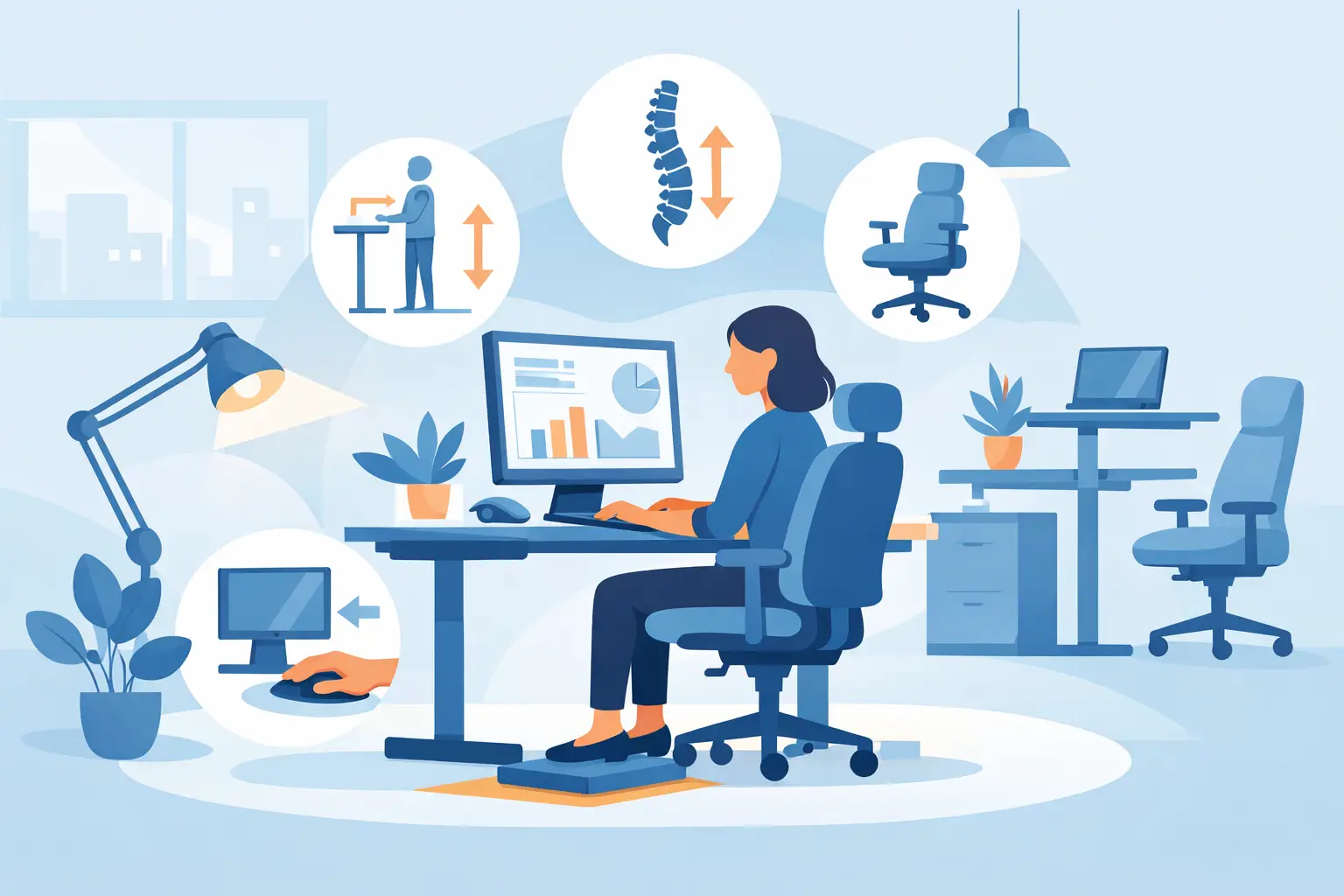
A workstation can look polished and still work against the person using it. A desk that is a little too high, a monitor set too low, or a chair with limited adjustment can create daily friction that shows up as sore shoulders, reduced concentration, and frequent breaks from focused work. For office managers and business owners, this is not simply a furniture issue. It affects how well the workplace performs.
This workspace ergonomics guide focuses on the practical decisions that make a measurable difference: planning the room, selecting adaptable furniture, setting up individual workstations, and allowing for the different ways people work throughout the day.
Start With the Work, Not the Furniture
Ergonomics is often treated as a checklist applied after an office is furnished. That approach can lead to expensive compromises, particularly when a business has already committed to desk sizes, storage locations, meeting rooms, and power points. The better approach is to assess the work first.
Consider how each team uses its space. A finance employee who spends most of the day between two large screens has different needs from a receptionist, a project manager moving between meetings, or a designer working with large-format documents. Medical and professional practices also need to account for privacy, patient flow, equipment access, and staff tasks at counters or shared stations.
This early assessment should identify where focused work happens, where people collaborate, how often desks are shared, and what equipment must remain within reach. It also reveals constraints such as compact floor plates, fixed building services, or the need to retain existing furniture. Not every office requires height-adjustable desks at every position, but every office benefits from furniture and layouts that suit real tasks rather than an idealized floor plan.
Plan a Layout That Lets People Move
A well-designed ergonomic workspace supports movement before anyone adjusts a chair. People need clear circulation routes, enough room to sit down and stand up without striking storage or partitions, and practical access to printers, filing, meeting spaces, and shared equipment.
Crowded layouts are a common source of poor posture. When a desk is pushed too close to a wall, users may be unable to position their chair properly. When storage is placed behind a workstation, people repeatedly twist to retrieve folders or supplies. When collaboration happens in an aisle because no suitable meeting point exists, the entire workplace becomes less efficient.
The goal is not to make every area open plan. Quiet zones, enclosed offices, and screened workstations all have a place when the work demands concentration or confidentiality. The key is to provide enough space for users to change position, access equipment safely, and work without unnecessary reaching or turning.
Account for Shared and Hybrid Desks
Hot-desking and hybrid work add another layer of complexity. A workstation set for one person is unlikely to fit the next user without adjustment. Shared spaces therefore need chairs with intuitive controls, monitors on adjustable arms or stands, and desks that accommodate a range of users.
Simple setup guidance at each shared desk is worthwhile. It gives employees a consistent starting point and reduces the chance that a workstation remains configured for the previous user. The investment is small compared with the productivity loss caused by a poorly arranged shared workspace.
Choose Chairs That Adjust to the User
An ergonomic office chair should support the person, not force the person to adapt to the chair. At a minimum, look for adjustable seat height, back support, armrests, and a seat depth that allows the user to sit back while leaving space behind the knees. A supportive backrest should encourage a neutral posture without feeling rigid or restrictive.
Chair selection is one area where price alone can be misleading. A lower-cost chair may look suitable on a showroom floor yet offer limited adjustment or lose support under daily use. Conversely, a fully featured task chair may be unnecessary for a lightly used visitor station. The right specification depends on hours of use, the range of body types within the team, and whether chairs are assigned or shared.
Armrests are also a trade-off. Properly adjusted armrests can reduce strain through the shoulders and forearms. If they cannot lower enough to fit beneath the desk, however, they may push the user too far from the keyboard. A fit-out team should evaluate the chair and workstation as one system, rather than purchasing each item independently.
Set Desk Height and Screen Position Carefully
For a seated workstation, the work surface should allow the user to type with relaxed shoulders and elbows positioned comfortably near the body. Feet should rest firmly on the floor or on a footrest where needed. If the desk height is fixed and does not suit the user, adjustment through chair height can create a secondary problem, such as dangling feet or an overly elevated keyboard position.
Height-adjustable desks can address this issue while also supporting changes between sitting and standing. They are particularly useful in roles involving long screen time, shared desks, or employees who benefit from regular posture changes. They are not a cure for inactivity, though. Standing in one position for several hours can be just as uncomfortable as sitting for too long. The value comes from variety and correct setup at both heights.
Monitor placement deserves the same attention. The main screen should generally sit directly in front of the user, at a distance that allows comfortable reading without leaning forward. The top portion of the display should be near eye level for many users, with adjustments based on vision requirements and progressive lenses. For dual monitors, place the primary screen centrally if one is used more often. If both are used equally, position them together in a shallow curve to reduce repeated neck rotation.
Laptop-only workstations need additional planning. A laptop screen and keyboard are attached, making it difficult to achieve an appropriate screen height and keyboard position at the same time. A laptop stand, separate keyboard, mouse, and external monitor can turn a temporary arrangement into a workable daily station.
Keep Frequently Used Items Within Easy Reach
Good ergonomics also means reducing unnecessary repetition. The phone, keyboard, mouse, writing surface, and reference materials should be arranged around the user’s most frequent tasks. A mouse placed too far away can cause sustained shoulder reach. A document viewed beside a keyboard may create repeated neck rotation. A phone held between the shoulder and ear during calls is a clear sign that a headset may be needed.
Cable management plays a practical role here. Loose cables can restrict desk adjustment, create trip hazards, and make cleaning difficult. Integrated power, monitor arms, cable trays, and accessible charging points produce a cleaner workstation while preserving the flexibility employees need.
Lighting should be reviewed at the same time. Glare from windows or overhead fixtures can encourage people to hunch, squint, or reposition screens awkwardly. Task lighting, sensible screen orientation, and appropriate window treatments can improve visual comfort without redesigning the entire office.
Build Ergonomics Into the Fit-Out Process
The strongest results come when ergonomics is considered during planning, not added after installation. Furniture dimensions, circulation, electrical access, storage, acoustic treatment, and workstation configuration all influence one another. Coordinating those decisions through one project team helps prevent the common situation where a desk is installed correctly but power, monitor placement, or chair clearance has been overlooked.
For a refurbishment, a workstation audit can identify which existing components can be retained and which are creating problems. Sometimes the solution is a full reconfiguration. In other cases, new monitor arms, better task chairs, keyboard accessories, or revised desk layouts can deliver substantial improvement without replacing every item.
Absolute Office Comforts approaches ergonomic planning as part of a broader workplace solution, combining customized furniture with layout, manufacturing, installation, and project coordination. That integrated approach is especially valuable when businesses need to keep operations running while a workspace is upgraded in stages.
Make Adjustment Part of Everyday Use
Even the best workstation will underperform if nobody knows how to set it up. Provide employees with a short orientation when new furniture is installed, especially when chairs, sit-stand desks, and monitor arms have multiple adjustment points. Encourage people to make small changes when discomfort appears instead of accepting an awkward setup as normal.
Managers should also revisit workstation needs after role changes, equipment upgrades, or team growth. An employee moving from occasional computer use to full-day screen work may need a different chair, monitor arrangement, or desk configuration. Ergonomics is not a one-time purchase decision. It is an operational standard that should evolve with the workplace.
A comfortable office is not created by one premium chair or one adjustable desk. It is created when the room, furniture, equipment, and daily work habits are designed to support people together. That is where a carefully planned workspace begins to return value every working day.